Hinsley Documentation
Validating a Question
Validate Question asks Hinsley to read a forecasting question and report problems that could make it resolve wrongly, ambiguously, or not at all. Each problem appears under the field it concerns, with a suggested fix. Validation does not change what the question says. You can create or update a question without validating it, and while problems are still open.
Running Validation
- Open the question form. For a new question, select New question on the questions list. For an existing question, open the gear menu on the question page and choose Edit question.
- Fill in the question as far as you have it.
- Select Validate Question at the bottom left of the form.
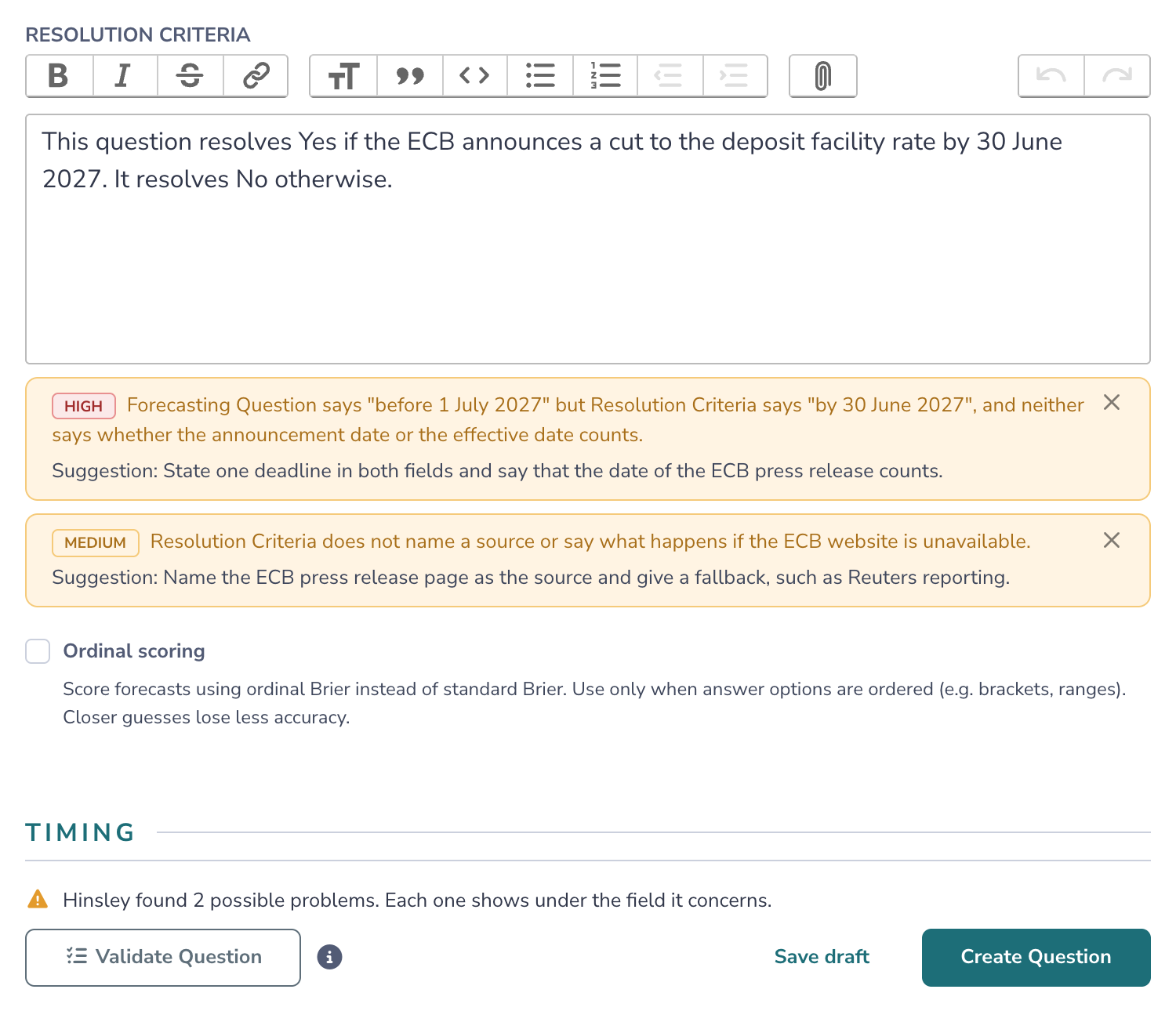
While validation runs, the form shows “Validating the question...” and Validate Question is disabled. You can continue to edit the form. When validation finishes, a summary line above the form buttons says how many problems Hinsley found, and each problem appears under its field.
Validation always reads the saved question. On an existing question with unsaved edits, Hinsley asks whether to save them first. Select Save and validate to save the edits and validate, or Cancel to keep editing. Forecasters see the saved edits right away, before validation finishes. If the save fails, for example because a required field is empty, the form shows the errors and validation does not start. On a new question, Validate Question first saves your work as a draft and opens the draft's page. Problems found on a draft stay with the question when you create it.
Validated Questions
Every question has one of four validation statuses:
| Status | Meaning |
|---|---|
| Not validated | Nobody has validated the question yet. |
| Problems | The question has at least one open problem. |
| Changed since validation | The question has no open problems, but someone saved a change to its text, answer options, type, scoring, or dates after the latest validation. Select Validate Question again to check the change. |
| Validated | The latest validation left no open problems, because it found none or because every problem it found was dismissed. |
A question checked before Hinsley stored validation status shows Not validated once its last open problem is dismissed. Select Validate Question once to give it a current status.
A validated question shows a green check in two places on its form: the summary line above the form buttons says “Validated” with the date of the latest validation, and the Question item in the “Manage question” menu shows a check icon.
The status also appears in these places:
- The Validation column on the Drafts tab. When a draft has open problems, its badge shows how many.
- The Questions page under Staff on a forecaster network. See Publishing Questions to a Network.
- The API. Each question has
review_statusandvalidated_at, and the questions list accepts areview_statusfilter.
What Validation Looks For
| What it looks for | Examples of a problem |
|---|---|
| Forecasting question | The question text is a topic (“Future of US immigration policy”), a request for advice (“Should we expand into Brazil?”), or a matter of opinion. |
| Question type | A “which” or “how many” question set up as Yes / No. Options that can all happen together set up as Multiple Choice. |
| Answer options | On a Multiple Choice question, an outcome that no option covers, or an outcome that two options both cover. |
| Ranges | A gap between numeric or date ranges (0-18, then 20-22), an overlap (18 in both 0-18 and 18-22), a missing lowest or highest range, or units that do not match. |
| Ordinal scoring | Ordinal scoring is off for options that form a scale, or on for unordered options. An ordered question also has an option off the scale, such as “Other”. |
| Consistency | The question text gives one deadline and the resolution criteria give a different one. |
| Timing | Forecasting ends after the scheduled event or data release that settles the question. A date that already passed is treated as future. |
| Resolution criteria | The criteria do not name a source, a deadline, or what happens when the source is late or missing. |
| Spelling and grammar | Misspelled words in text that forecasters see. British and American spellings are both accepted. |
Validation bases its findings on the text of the question. It does not look up facts about the world, such as the scheduled date of an election, unless the question states them.
Reading a Problem
Each problem has a severity:
- High - The problem can make the question resolve wrongly, ambiguously, or not at all.
- Medium - The problem can mislead forecasters or score them unfairly.
- Low - The wording is unclear or misspelled, but the outcome does not change.
A problem that involves several fields appears once, under the field to change.
Fixing or Dismissing a Problem
To fix a problem, edit the field and save the question. If the save changes a field that the problem involves, the problem stays on the page, faded, with the note “This field changed after the problem was found. It may be fixed.” Select Validate Question again to confirm the fix. Each new validation replaces the problems from the previous validation.
To dismiss a problem that you do not agree with, select the × button on it. The problem leaves the form for everyone who can edit the question. Anyone who can edit the question can dismiss a problem. A later validation can report the same problem again.
While a question has problems that are not dismissed, the Question item in the “Manage question” menu shows a warning icon in place of the check icon.